Create Email Templates
Using the Create New Email Template dialog box, you can configure details for a new email template. The Ayla Cloud uses the details you specify for the email template when building and delivering customized emails sent to end-users. For example, each email template has a unique template ID that is used in the web or mobile app as an API parameter. The Ayla Cloud looks for the appropriate template based on the specified template ID, and uses that template to build an email body after performing all the substitutions.
Upon entering the details in this dialog box, an entry is added to the table listing on the Message Templates tab for your new email template.
Configure details for and add a new email template as follows:
- On the Message Templates tab, click ADD NEW. This opens the Create New Email Template dialog box, shown below.
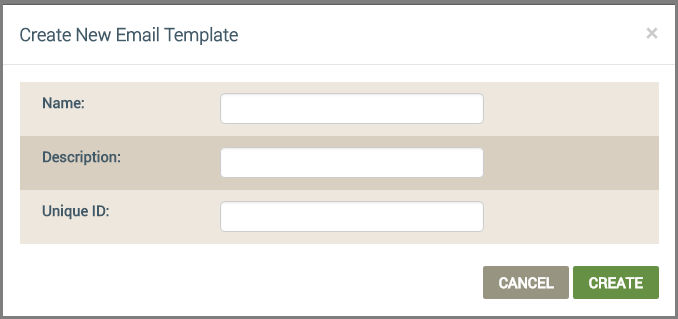
- Enter the following information for the email template.
- For Name, type a name for this email template.
- For Description, type a short phrase describing the email template.
- For Unique ID, enter the Ayla-assigned template ID, which is a unique identification for the email template.
- Click CREATE to add an entry for this template on the Message Template tab.
- Upload your email template, or download and edit a sample template.
See also: Create New Email Template, Update Email Templates, Guidelines for Email Templates,
How to get here on the dashboard: Click OEM Profile in the Navigation Panel on the left, the Email Templates tab and then the ADD NEW button.
Please click here to let us know how we're doing. Thank you.